Telegram CRM
How to Create Custom Pipeline Views
Serge Borisov
This guide shows you how to create multiple, customized pipeline views in CRMchat. By filtering your leads based on specific properties, you can create separate pipelines for different industries, products, or sales teams. Before starting, you must have a custom property configured to use as a filter.
Navigate to the Pipeline section from the left-hand menu.
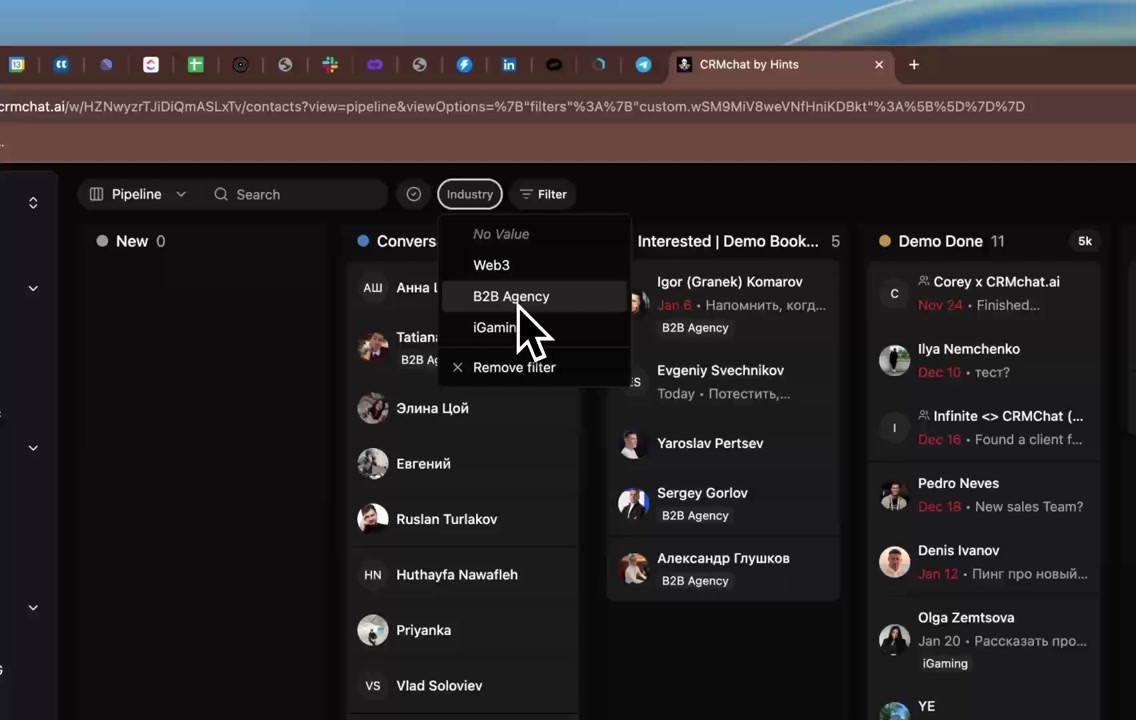
Click the Filter button located at the top of the pipeline board.
Select custom properties you want to use for your new view, such as Industry, Event, etc., and then choose a specific value from the dropdown list
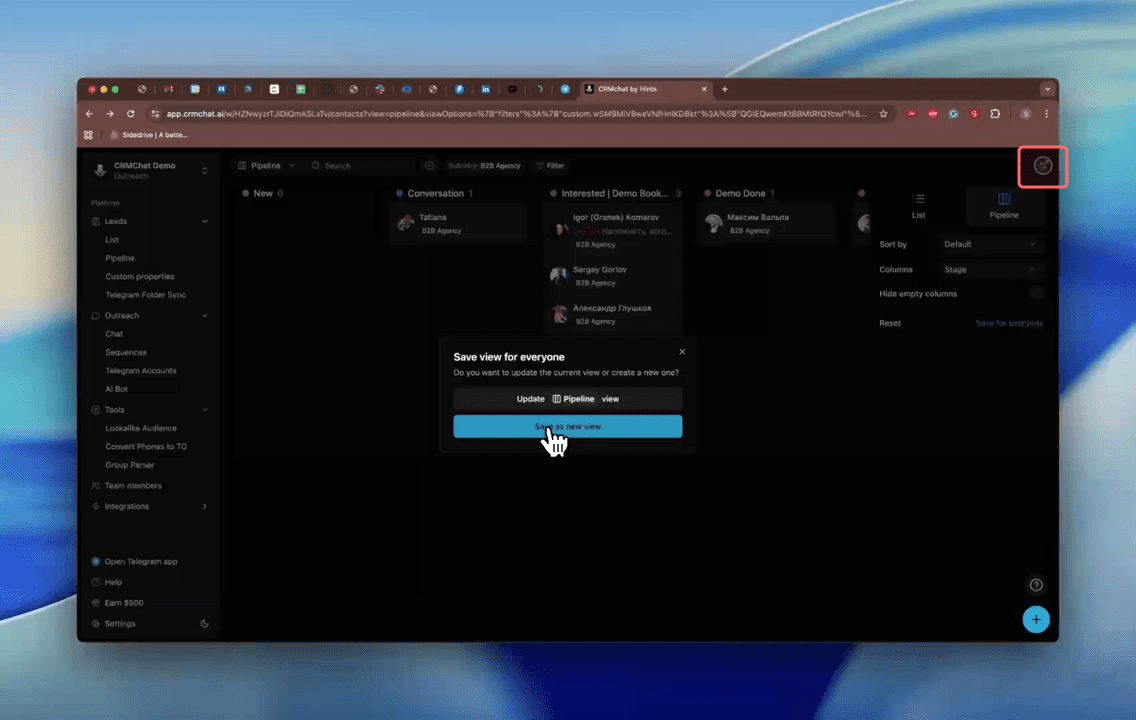
Click the view settings icon in the top-right corner of the screen.
Select Save for everyone from the settings panel.
In the pop-up window, click the Save as new view button to create a new pipeline instead of updating the current one.
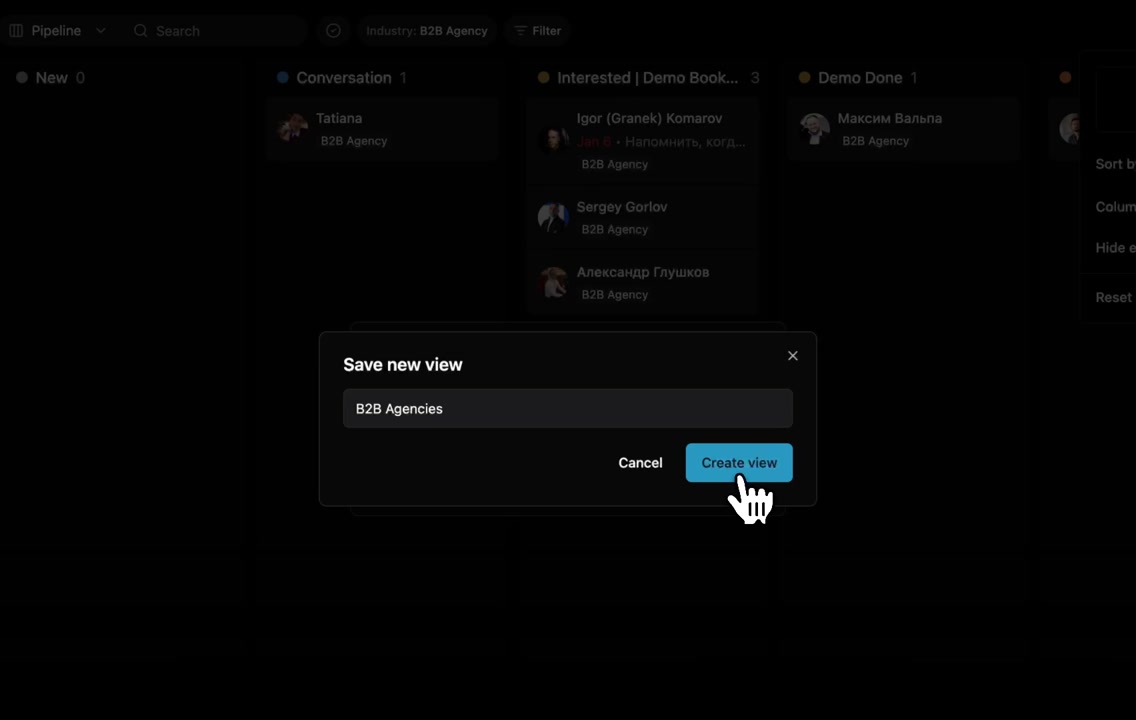
Enter a descriptive name for your new view in the provided field and click Create view.
Important Tip
After creating a new view, your default pipeline may still have the filter applied. To restore it, select your default Pipeline view from the dropdown, click the view settings icon, and then click Reset.
Summary
This article explains how to create distinct, saved pipeline views by applying filters based on custom properties. This feature allows you to segment your leads and manage multiple sales processes simultaneously within a single workspace, enhancing organization and efficiency.
Next Lesson: Notes, Reminders, and Team Collaboration
Related Articles
Check articles from the same category