Telegram Outreach
Sending Outreach Sequences to Telegram Group Chats
Serge Borisov
This feature allows you to send automated outreach messages in bulk to your Telegram group chats, making it ideal for community updates, partner announcements, or new feature rollouts. You can create and manage these campaigns from the Outreach section of the platform.
Preparing Your Group Chats
Before you can send a sequence, your Telegram group chats must be added as leads in your CRM. There are two primary ways to do this:
Telegram Folder Sync: The most efficient method is to organize your group chats into a folder within Telegram and then sync that entire folder. This automatically imports all chats within it into your CRM.
Manual Addition: You can also add a group chat individually. Open the chat within the platform's interface and click the Create lead in CRM button to add it to your pipeline.
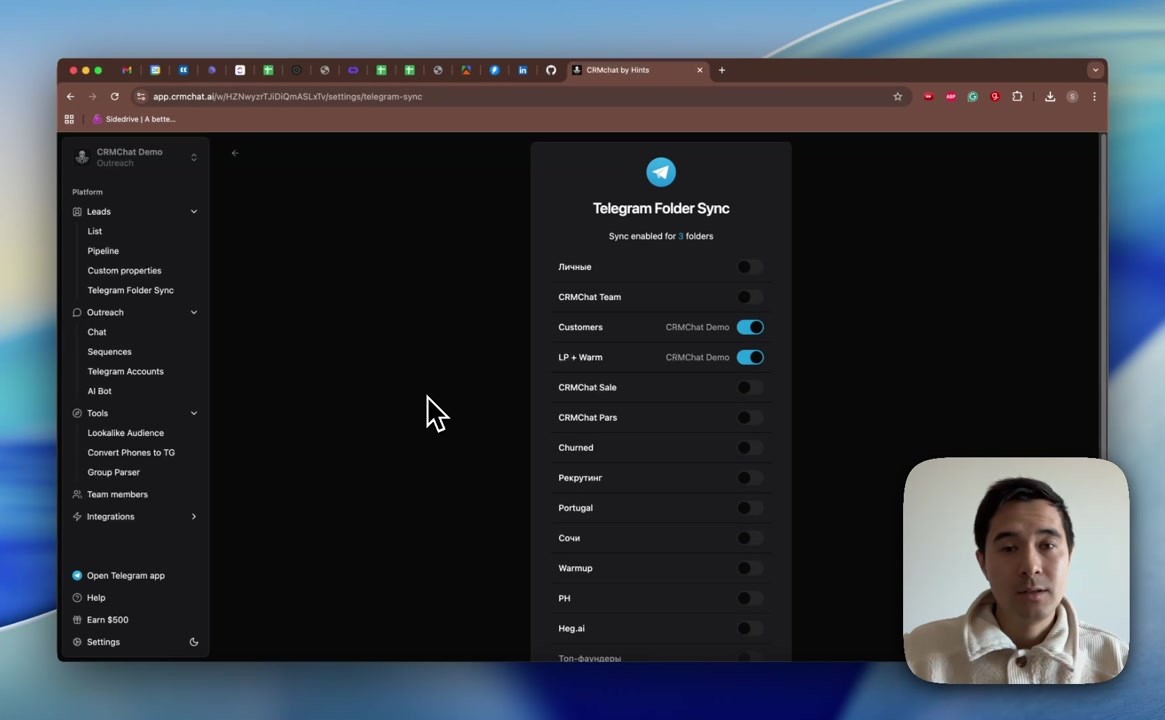
Once added, these group chats will appear in your Pipeline, typically in the default "New" stage. You can then use bulk actions to organize them, such as by editing custom properties like language to segment them for targeted campaigns.

Creating a Group Chat Sequence
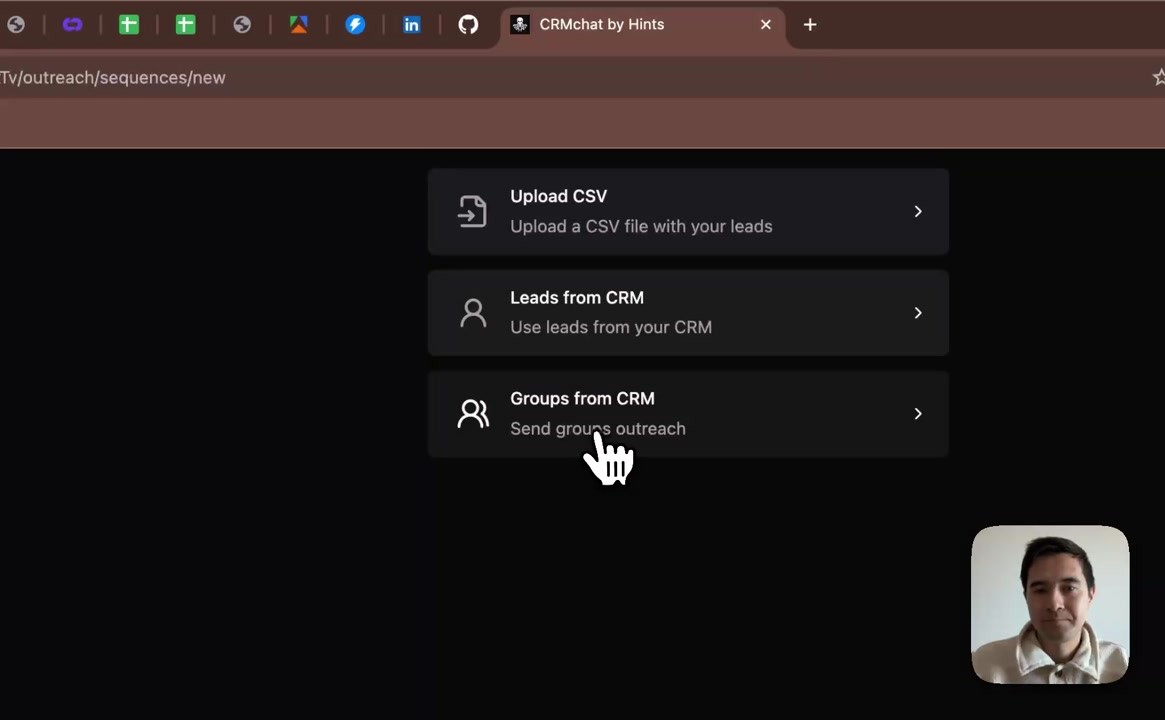
To start a campaign, navigate to Outreach > Sequences and create a new sequence. You will see an option specifically for group chats.
Click New sequence and select the Groups from CRM option.
Choose a campaign type. One-Time sends the message once to the current list of filtered groups. Dynamic will automatically include any new groups that match your filters in the future.
Use the Filters to define your target audience. You can filter by pipeline Stage or any custom property you've created, such as Language.
Review the Preview list to ensure it includes the correct group chats, then click Create campaign.
Composing Your Message and Tagging Members
A powerful feature of group outreach is the ability to tag specific members in your message, ensuring key contacts see your update. This is done using a custom property.
First, create a new text-based Custom Property (e.g., named "Tag") under Leads > Custom properties.
For each group chat you want to tag members in, go to its CRM card in the Pipeline and find the new property field.
Enter the Telegram usernames of the members you wish to tag, separated by a space (e.g., `@username1 @username2`) or commas.
In the sequence message editor, click the curly braces icon { } to insert a variable and select your "Tag" property. This will dynamically insert the usernames into the message for each group.
If the property is empty for some leads, you can still send the sequence, but this field will remain empty.

Tips for Using This Section
Use custom properties creatively to segment your groups. Tagging key individuals, such as community managers or partners, can significantly increase the visibility and impact of your announcements. If a group chat does not have any usernames in its "Tag" field, the message will still be sent, but the tag variable will be left empty.
Summary
This article explains how to send automated outreach sequences to Telegram group chats. It covers adding groups to your CRM via folder sync or manual creation, setting up a targeted sequence using filters, and composing messages that can dynamically tag specific members using custom properties. This feature is essential for efficiently communicating with large communities and partner groups.
Next Lesson: Telegram Outreach Tips and Best Practices
Related Articles
Check articles from the same category